![XUno logo White with border.png]](https://docs.xuno.com.au/hs-fs/hubfs/XUno%20logo%20White%20with%20border.png?height=35&name=XUno%20logo%20White%20with%20border.png)
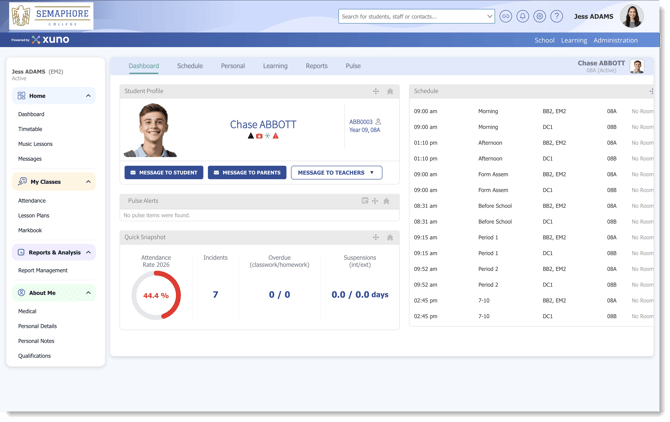
The Student Dashboard has been updated with a cleaner layout and new tab-based navigation, making it easier for staff to access student information and move between different areas of the student profile.
Student Dashboard – Where to Find the Options
The new dashboard groups related information into five main sections: Personal, Schedule, Learning, Pulse, and Reports.
Use the table below as a quick reference to find where options from the previous dashboard are now located.
Quick Reference
| Dashboard | Schedule | Personal | Learning | Reports | Pulse |
| > Attendance | > Student Information | > Learning Plans | > Academic Reports | > Incidents | |
| > Timetable | > Family Information | > Classwork & Homework | > NAPLAN, OD & VC | > Achievements | |
| > Bus Transport | > Medical | > Career Plans | > Reports & Letters | > Merits/Demerits | |
| > Notes | > Progress Reports | > Wellbeing | |||
| > Confidential Notes | > Events | ||||
| > Documents | |||||
| > Student History |
The updated design focuses on two key areas:
- Schedule – view the student's schedule and related information.
- Pulse Feed – view alerts and updates relevant to the selected student.
The student menu is also now displayed as a tab menu at the top of the page, providing quick access to all student-related pages.
Dashboard Overview
The Dashboard provides a quick overview of the student’s profile, including:
- Student Profile – Displays key student information.
- Today’s Schedule – Shows the student’s schedule for the current day.
- Pulse Alerts – Highlights relevant student engagement and incident alerts.
- Quick Snapshot – Provides a summary of key information, including attendance, incidents, overdue items and suspensions.

Main Navigation
Use the navigation menu to access the different sections of the student profile.
1. The Schedule section provides an overview of the student's daily school activities and attendance.
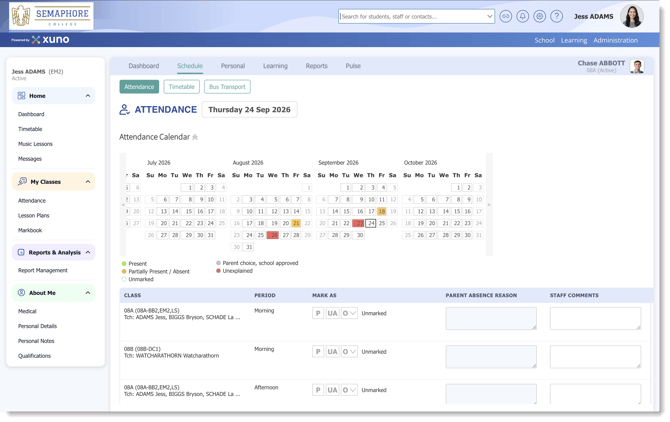
- Attendance – View the student’s attendance records and status.
- Timetable – View the student’s classes and scheduled activities.
- Bus & Transport – Access the student’s transport and bus information.
2. The Personal section brings together the student's personal, family and supporting information.
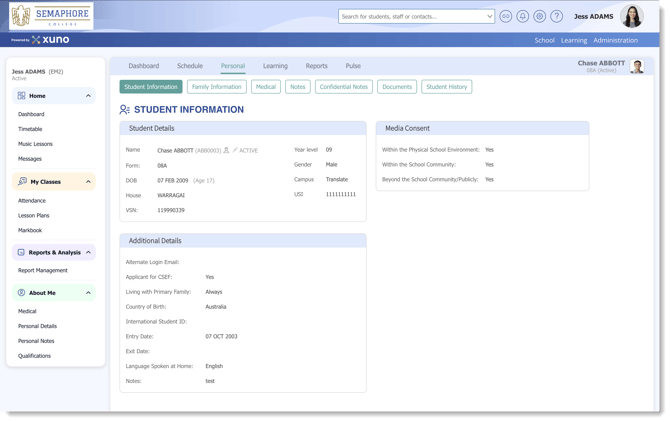
- Student Information – View the student’s personal details.
- Family Information – View family and household details.
- Medical – Access relevant medical information.
- Notes – View student notes and relevant information recorded about the student.
- Documents – Access documents associated with the student.
- Confidential Notes – View confidential information where the staff member has the appropriate permissions.
3. The Learning section provides access to information related to the student's learning, development and academic activities.
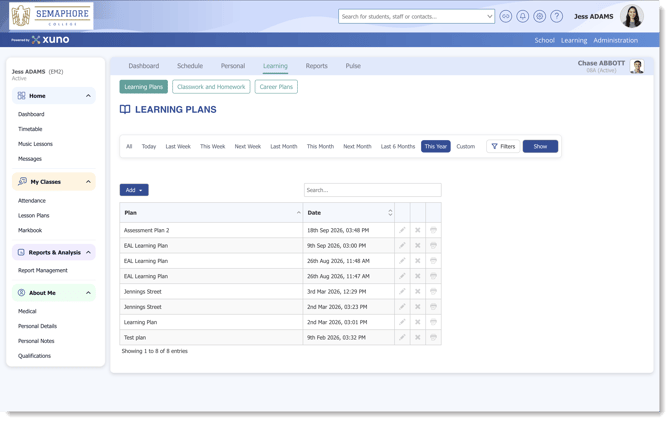
- Learning Plans – View the student’s learning plans.
- Career Plans – Access career planning information.
- Classwork & Homework – View classwork, homework and related learning activities.
4. The Reports section provides a central location for accessing student reports and letters.
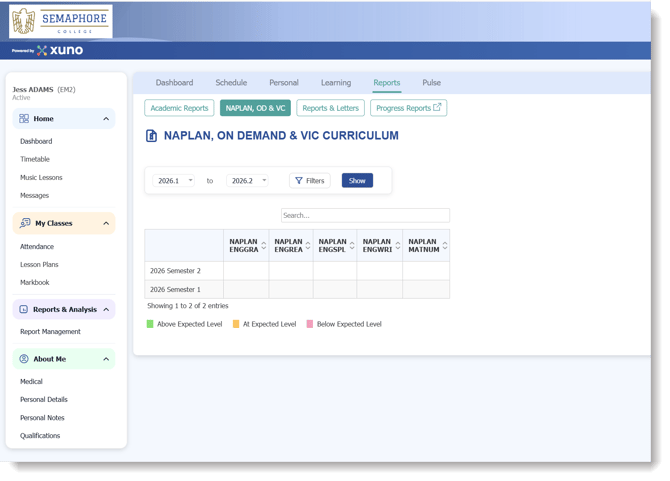
- Reports & Letters – View available student reports and letters.
- Progress Reports – Access student progress reports.
- Academic Reports – View academic reporting information.
- NAPLAN, OD & VC Reports – Access available NAPLAN reports.
5. The Pulse section provides a quick view of important student activity, engagement and wellbeing information.
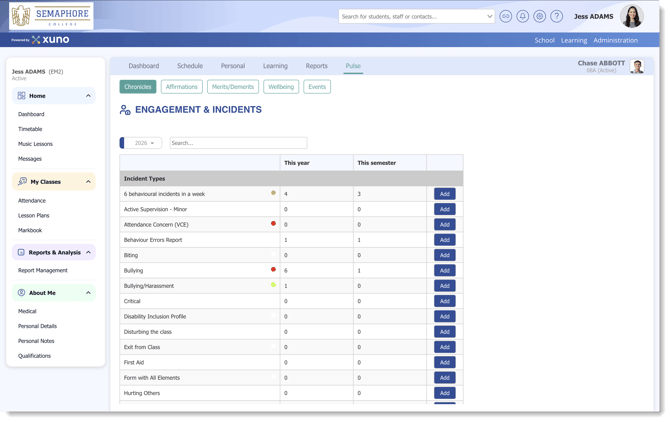
- Achievements – View achievements and awards.
- Incidents – View incidents involving the student.
- Merits & Demerits – View recorded merits and demerits.
- Wellbeing – Access relevant wellbeing information.
- Events – View events associated with or involving the student.
Staff Menu – Left-Hand Side
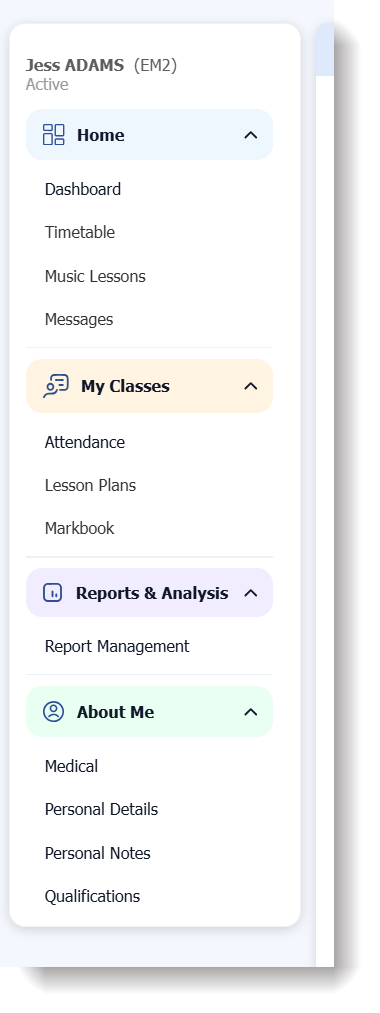
The Staff Menu on the left-hand side has been given a new, modern look to provide a cleaner and more intuitive navigation experience. The menu now remains visible while navigating through the system, making it easier for staff to quickly access different areas without needing to return to the main screen.
At a Glance
| Previous Design | New Design |
|---|---|
| Student menu presented in the previous navigation layout | Student menu is displayed as tabs at the top of the page |
| Pulse Alerts | Pulse Feed |
| Dashboard information displayed in the existing layout | Information presented in updated widgets |
| Fixed widget arrangement | Widgets can be repositioned |
| Navigation between student pages required the previous menu | Tabs provide quick access to student pages |
| Student Dashboard information | Same information presented in a new layout |