![XUno logo White with border.png]](https://docs.xuno.com.au/hs-fs/hubfs/XUno%20logo%20White%20with%20border.png?height=35&name=XUno%20logo%20White%20with%20border.png)
The Xuno Staff Dashboard has a refreshed look, featuring an updated user interface designed to provide a cleaner and more modern appearance.
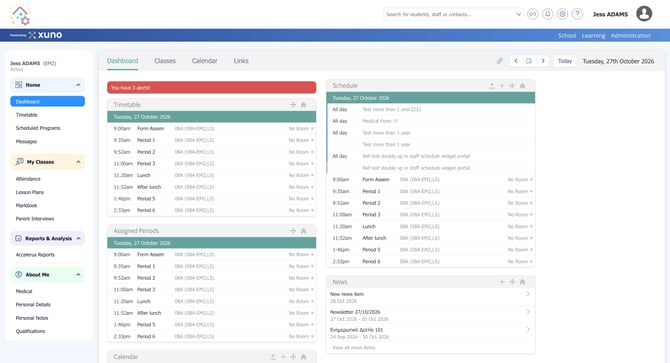
The Student Profile has been enhanced with new features to help staff communicate more efficiently, record student-related information, and review student activities in one convenient location.
The latest updates include:
- Send Message – Send messages directly to students, parents or guardians, and teachers.
- Quick Actions – Quickly add notes, record incidents, create actions, and manage other student-related records.
- Activity Logs – View a chronological record of student activities, including attendance, absences, messages, notes, and incidents.
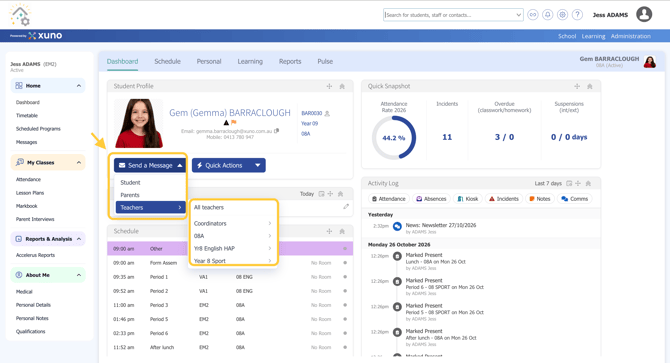
The Send Message options are now grouped under a single button, with a submenu that makes it easier to select the appropriate recipients. Teachers can send messages directly to the student, their parents or guardians, teachers of a specific class, or all teachers associated with the student.
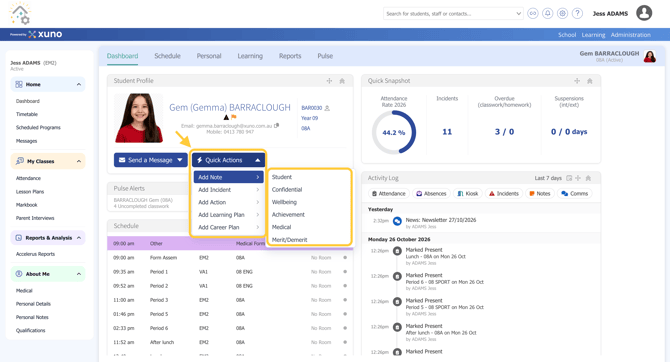
The Quick Actions button allows teachers to record important student information directly from the Student Profile without navigating to other sections. Depending on their permissions, staff can add notes, record incidents, create actions, and access other available student-related options, making everyday documentation quicker and more convenient.
The Student Activity Logs widget provides a chronological overview of student-related activities within a selected period. Staff can review attendance records, including the time and staff member who marked attendance, absences, kiosk sign-ins and sign-outs, messages and other communications, notes, and recorded incidents. This gives staff greater visibility into a student's activity history and makes it easier to refer to previous records when needed.
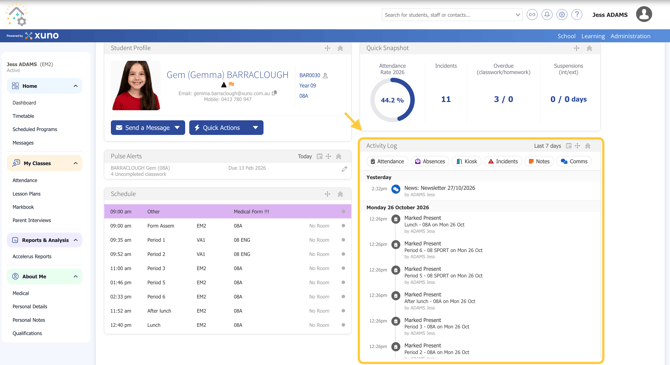
📓 Access to Student Activity Logs is permission-based. Staff can only view activities they have permission to access. If certain activities are not visible, the relevant permissions may need to be reviewed by a school administrator.