![XUno logo White with border.png]](https://docs.xuno.com.au/hs-fs/hubfs/XUno%20logo%20White%20with%20border.png?height=35&name=XUno%20logo%20White%20with%20border.png)
• If you have made any changes to your selections or filters, you always need to refresh the map for the changes to take effect.
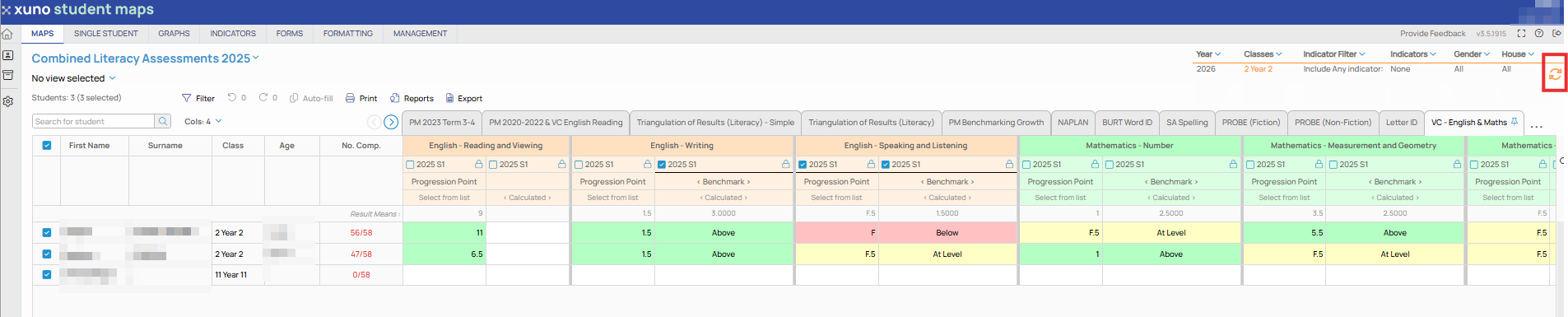
• For example, if you select a different map or class, data for that map or class won’t be shown in the map until you click the refresh button in the top right of the maps screen.
• You can click the refresh button at any time if a change has been made to the map or map data in the GradeXpert desktop application and you want to see the same changes here.
• If any selections or filters have changed, the refresh button will show an exclamation mark next to the refresh button, indicating that changes to filters have been made and changes will only be shown after clicking refresh.