![XUno logo White with border.png]](https://docs.xuno.com.au/hs-fs/hubfs/XUno%20logo%20White%20with%20border.png?height=35&name=XUno%20logo%20White%20with%20border.png)
Enable/Disable the Parent-Teacher Interviews v2
To turn the Parent–Teacher Interviews v2 module on or off:
- Navigate to Options → Software Settings → General Settings → PTI Settings.
- In this section, you will find a toggle or checkbox for Parent-Teacher Interviews v2.
- Select Enable if you want to activate the version 2 interface and functionality.
- Select Disable if you want to revert to the previous version or temporarily turn off access.
- Ensure you save your changes before exiting the settings screen.
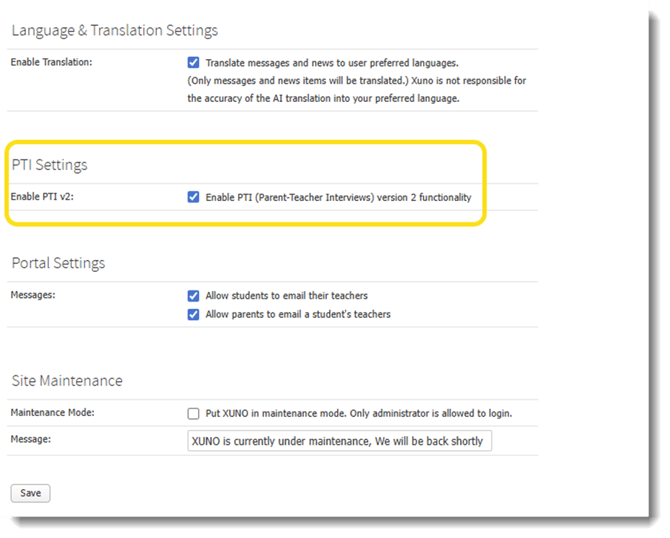
Note: Please note that PTI v1 and v2 function as separate modules. If the system is switched back to v1, any configurations or bookings created in v2 will not be visible in v1.
Understanding the User Group Permissions
User permissions determine who can view, edit, or manage Parent–Teacher Interviews. To review or adjust these permissions:
- Go to Options → User Groups & Permissions.
- Select the User Group (e.g., Teachers, Admin Staff, Executive).
- Adjust the permissions by selecting or deselecting the relevant options.
- Save your changes to apply the updated access levels.
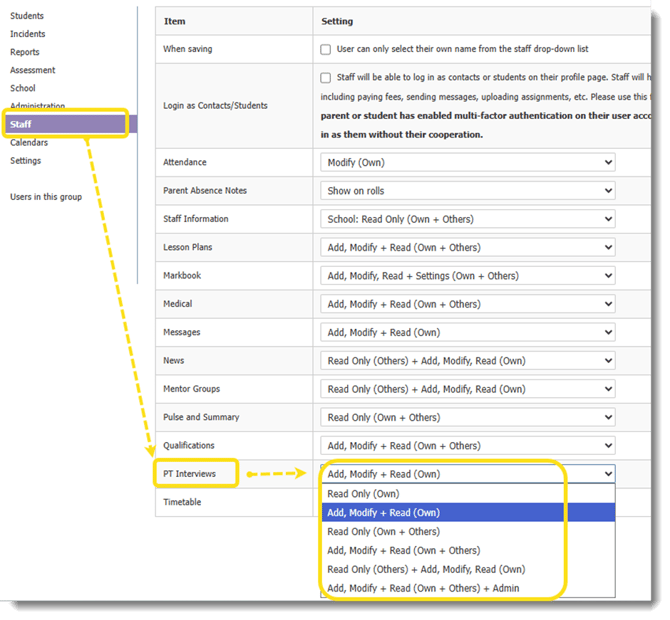
Parent-Teacher Interview Access Levels
PTI access levels help define what different users can do within the system:
- Administrators
-
- Full access to create, edit, and publish interview schedules
- Can adjust teacher time slots and override bookings
- Can generate full PTI reports and booking summaries
- Teachers
- Can view their own interview schedule
- Can edit their availability (if allowed by permissions)
- Can view parent bookings and print schedules
Permissions:
- Read Only (Own)
Users in this group can view only their own bookings. They cannot view or modify any other users’ bookings. - Add, Modify + Read (Own)
Users in this group can create, edit, and view their own bookings, but cannot view or modify bookings made by others. - Read Only (Own + Others)
Users in this group can view all bookings, including those made by others, but cannot create, edit, or delete any bookings. - Add, Modify + Read (Own + Others)
Users in this group can create, edit, and view bookings for themselves and for others.
They may also book or block timeslots on behalf of parents when necessary. - Read Only (Others) + Add, Modify, Read (Own)
Users in this group can create, edit, and view their own bookings, and view (but not modify) others’ bookings. - Add, Modify + Read (Own + Others) + Admin
Users with this access level have full administrative privileges. They can add sessions, create, edit, or delete any bookings, and publish Parent-Teacher Interview schedules.
Creating a Parent-Teacher Interview Session
Only users with the Admin permission can create a PTI session.
To create a PTI session, navigate to Administration → Reports → Parent Teacher Interview.
- Click ‘Add Session’
Begin by selecting the ‘Add Session’ button to create a new Parent-Teacher Interview session. Complete the following fields to define the session’s details and booking rules.
- Session Description
Enter a title or name for the session. This helps staff and parents identify the purpose of the event (e.g., Term 1 Parent-Teacher Interviews or Year 10 Progress Meetings). - Session Dates
Specify the start and end dates of the interview period. These dates determine when interviews can be scheduled within the session. - Parent Bookings Open
Set the date and time when parents can begin booking interview slots. Before this time, the booking portal will remain closed to parents. If the date and time are not selected, parents will be able to see the PTI as soon as it is published. - Parent Bookings Close
Set the cut-off date and time for parent bookings. After this deadline, parents will no longer be able to make or modify bookings. - Slot Duration
Define the length of each interview slot (e.g., 10 minutes or 15 minutes). This ensures consistent scheduling across all bookings. - Allow Secondary Family to Book
Enable this option if secondary family members (e.g., in split-family situations) should be allowed to book separate interview times for the same student. - Allow Translators
Select this option if translator support is permitted for this session. This allows parents to request a translator when making a booking.
- Session Description
- After Saving the Session
Once the session has been saved, additional tabs will appear. The PTI administrator can then add students or classes, assign staff, and upload attachments as needed.
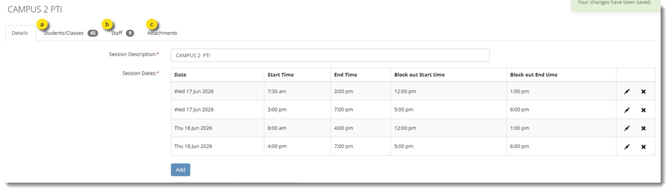
- Adding Students
Administrators can add participants by selecting individual students, forms, year levels, or classes. For schools with multiple campuses, there is also an option to filter by campus. In addition, future students can be added by clicking on the “Include future students” check box if they are expected to participate in upcoming sessions. - Adding Staff
When a form, year level, or class is added, the relevant staff members are automatically linked to the students. This ensures that teachers are assigned correctly without requiring manual entry. If needed, you can remove any staff members you don’t want included for bookings. Ticking the ‘General’ column allows students to book appointments with that teacher. - Uploading Attachments
Administrators can upload relevant documents, such as maps, schedules, or event instructions. These attachments will be available for parents to download.
- Adding Students
-
Publishing the PTI Session
Once all session details, students, staff, and attachments have been added, the Parent-Teacher Interview (PTI) session can be published.
Publishing makes the session visible and accessible to parents, allowing them to begin booking available timeslots within the defined PTI session dates. -
Modifying a Published PTI Session
After a PTI session has been published, administrators can still make limited changes. The following rules apply:
- While the PTI session is published, administrators can edit most fields in the Details tab, except for the Session Dates.
Note: To change the Session Dates, you must first unpublish the session.
-
- To add or remove students, classes, or teachers, the PTI session must be unpublished.
Once changes have been made, the session can then be republished.
- To add or remove students, classes, or teachers, the PTI session must be unpublished.
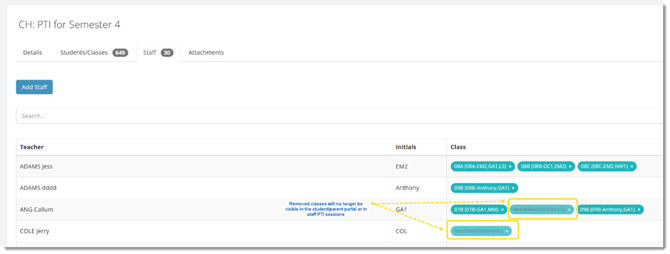
5. Excluding classes in the PTI session
Admins can exclude classes from a PTI session by navigating to the Staff tab and removing the class.
Available icon functions for each PTI session
These are the icon functions for each PTI session created.
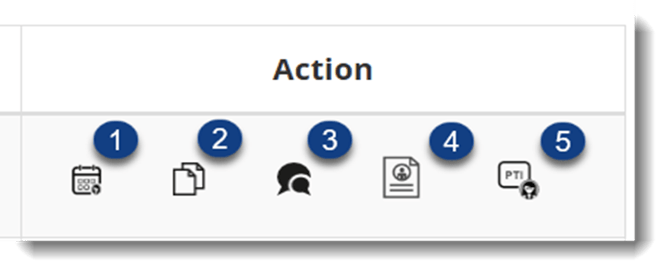
1.Staff View - Booking PTI session by staff
Teacher/Staff can manage their own PTI bookings by clicking the staff view icon. PTI administrators will have permission to edit PTI bookings for all staff members included in the PTI session.
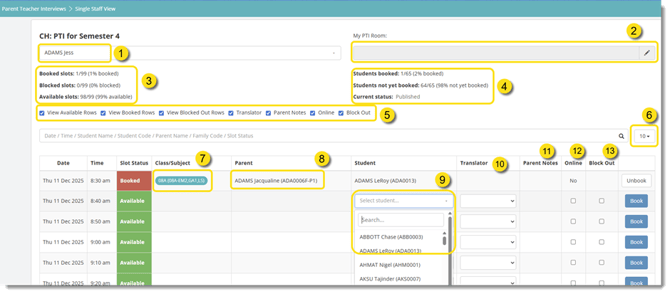
1. Teacher Selector – allows admin/staff to switch between teachers to view or manage their Parent-Teacher interview schedules.
2. PTI Room editor – lets staff or admin enter or update the room where interviews will take place physical or online meeting link.
3. Slot Summary Panel – gives the teacher/admin an instant overview of scheduling status so they can see remaining capacity.
4. Student Booking Summary – helps staff track overall student participation and ensures the schedule is active and visible to parents.
5. Display Filters – lets the user customise what appears in the schedule table, filtering for availability, special requirements, etc.
6. Rows Per Page Selector – adjusts the number of records to show per page
7. Class/Subject Column- indicates which class the parent/student booking refers to. Helps determine which subject the interview pertains to.
8. Parent Column – identifies who made the booking and allows confirmation of parent details at a glance.
9. Student Selector – allows selecting or changing the student for that time slot.
10. Translator Requirement – helps the school allocate interpreter support for interviews.
11. Parents Notes – alerts teachers to special requests or context before the meeting.
12. Online Checkbox – identifies virtual appointments.
13. Block Out – lets teachers reserve time for breaks, admin tasks, or unavailable periods.
2. Cloning a PTI Session
The Cloning feature allows administrators to quickly create a new Parent-Teacher Interview (PTI) session using the setup of an existing one.
This helps save time by automatically copying key details such as session settings, time slots, and configurations.
Admins can then adjust session dates or make any other necessary updates before publishing the new session.
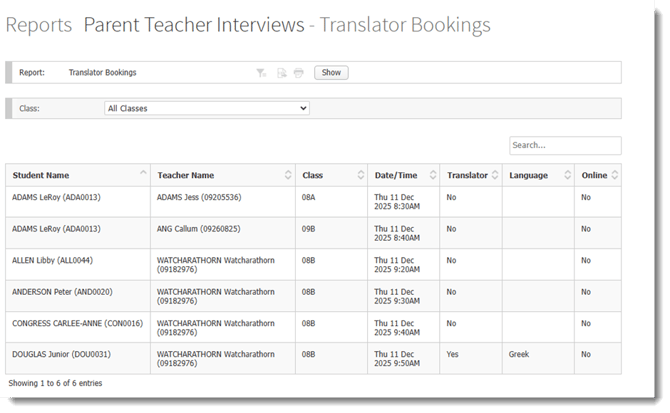
3. Viewing Bookings with Translators
This view allows administrators to easily identify and manage bookings that require translator assistance.
Admins can review which parents have requested translators and ensure that appropriate language support is arranged prior to the interviews.
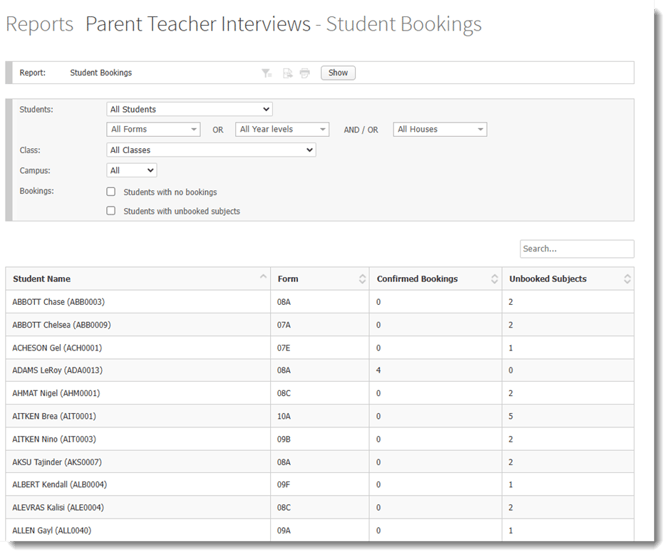
4. Viewing Student Bookings
This section provides a summary of all bookings made for individual students, including session times, teachers, and subjects.
Admins and staff can use this view to confirm that each student has the necessary appointments scheduled and to identify any missing or overlapping bookings.
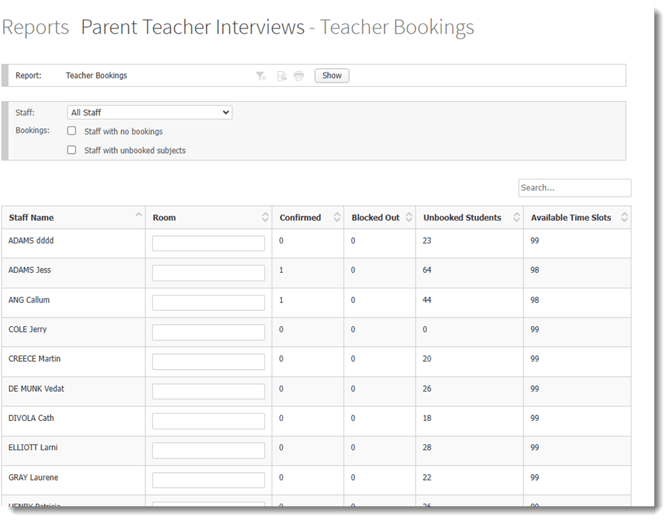
5. Viewing Teacher Bookings
The Teacher Bookings view displays all scheduled interviews for each teacher. This helps PTI administrators to manage the interview bookings efficiently and ensures sufficient timeslots have been allocated to each teacher.
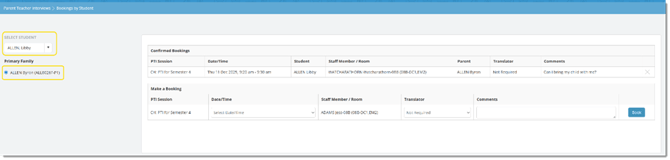
Booking the PTI session on behalf of a parent or student
To book a PTI session on behalf of a student or parent, the staff member can navigate to:
School → Communication → Parent Teacher Interviews, and search for the student. You will need to select the parent if the student has Primary and Secondary families.
Booking the PTI session by parents via the app/portal
Once the PTI session has been published, parents can also make their own booking via the Xuno Family portal or app. The menu option for PTI booking is School → Communication → Parent Teacher Interviews.
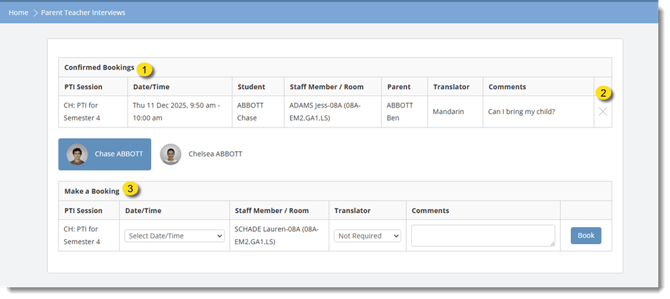
1. Confirmed Bookings
Shows all appointments that have already been successfully booked.
Parents can review details such as date, time, teacher, and comments added.
2. Delete Bookings
The “X” button allows parents to cancel an existing booking.
Once clicked, the appointment is removed from the confirmed list.
3. Make a Booking
This section is where parents choose a time slot and create a new Parent-Teacher Interview booking.