![XUno logo White with border.png]](https://docs.xuno.com.au/hs-fs/hubfs/XUno%20logo%20White%20with%20border.png?height=35&name=XUno%20logo%20White%20with%20border.png)
Select Year
In Student Maps, you can select previous academic years to see the list of classes for that year and which student were in those classes.
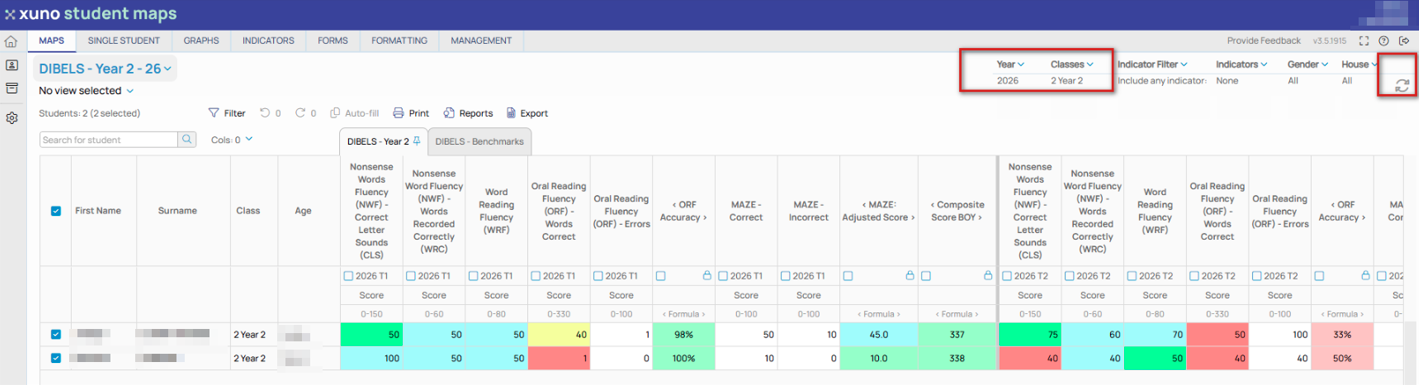
• From the Year drop-down list (that defaults to the current year), select the year you want to view classes for, e.g. 2021, and then click the Refresh button.
• The classes for that year will then be shown in the drop-down list of classes, and you can select one or more classes to view.
• For example, you may be looking at your classes for 2023, so the year drop-down shows 2023 and all the classes in the class list are for 2023. However, if you want to look at which classes some of these students were in in previous years, simply select the desired year (e.g. 2022), click refresh, select all classes and search for the student’s name, which will show you which classes that student was in during that academic year.
Select Class or Classes
• To select one or more classes to display data for, click the Select Class option and tick or untick the classes you want to show or hide. The total number of students in each year level is shown to the right of the year level name.
• The number of students enrolled in each class is shown to the right of each class name.
• Click the checkbox at the top of the list to select or unselect all classes in the list.
• You can also search for a class or classes by typing a part of the class name into the search box. Any classes matching that search term will then be displayed for selection.
Refresh Map
• If you have made any changes to your selections or filters, you always need to refresh the map for the changes to take effect. • For example, if you select a different map or class, data for that map or class won’t be shown in the map until you click the refresh button in the top right of the maps screen. • You can click the refresh button at any time if a change has been made to the map or map data in the GradeXpert desktop application and you want to see the same changes here. • If any selections or filters have changed, the refresh button will show an exclamation mark next to the refresh button, indicating that changes to filters have been made and changes will only be shown after clicking refresh.