![XUno logo White with border.png]](https://docs.xuno.com.au/hs-fs/hubfs/XUno%20logo%20White%20with%20border.png?height=35&name=XUno%20logo%20White%20with%20border.png)
Option 1: Adding to existing maps
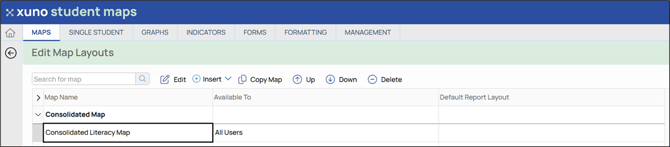
- Go to Student Maps and, in the Edit Map Layouts screen, double-click on the map you wish to update
-
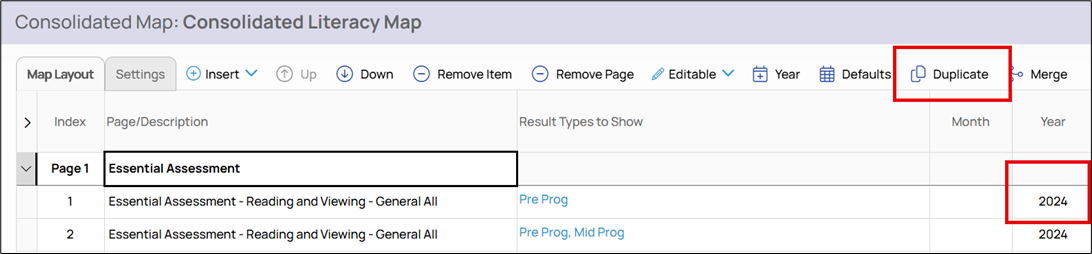
To duplicate a row or entire page in a map, select the row or page and click the Duplicate button
- You can update the year by using the dropdown menu in the year column
- Click Save
Option 2: Creating duplicate maps updated for the new year
- Go to Student Maps and the map you wish to duplicate
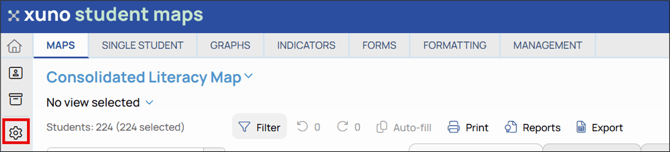
- Click the Settings icon button
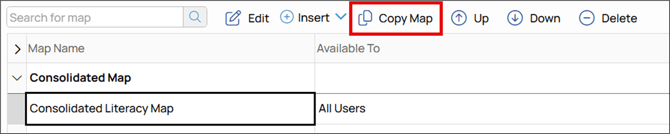
- In the Edit Map Layouts page, select the map you want to duplicate
- Click 'Copy Map'
- Rename the duplicated map by double-clicking on the new map and selecting the Settings tab
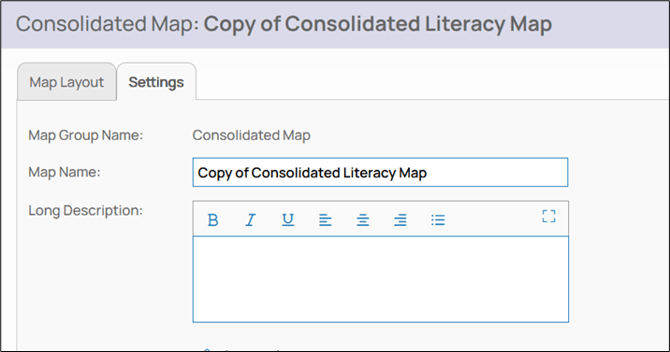
- Type in the new name for the duplicated map and click 'Save'
- Go back to the Map Layout tab and click the 'Increment Year' button. This will the year of all rows i.e. from 2025 > 2026

- If a new map group is needed, return to the Edit Map Layouts page, click 'Insert' and select New Map Group

- Move this new map into the new map group by clicking the Up or Down buttons
If you delete a map, the underlying student data is never deleted. A map is only a view of the data saved against each student.
You can delete and recreate maps as needed without deleting any student data.