![XUno logo White with border.png]](https://docs.xuno.com.au/hs-fs/hubfs/XUno%20logo%20White%20with%20border.png?height=35&name=XUno%20logo%20White%20with%20border.png)
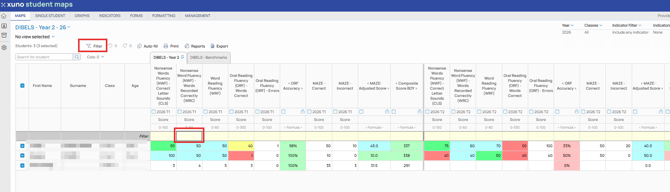
With the column filter option, you can specify a value or range of values to filter any number of columns by. This lets you focus on a particular group of students whose results for any set of assessments fall within a specified range, e.g. all students who received an A for English, and an A for Maths.
• When viewing a student map, click the Filter button at the top of the map to enable filters. A yellow row will then appear at the top of the map.
• You can then enter any value or range of values you would like to filter each column by. For example, you can type <5 into a result column filter, and only students whose result values for that assessment is than five will be shown. You can then type >10 into another result column filter, and any students displayed (after any other filter has been applied) whose result for that assessment is greater than 10 will be shown.
• You can clear all filters by clicking the Filter button to turn filters off, and then click again to turn filters on again, which will remove any existing filters. You can also just delete the filter you typed into the result column filter cell to remove that filter.
• When adding a filter to a column, you can use wildcard search options as per below:
- can be used as a wildcard, e.g. a* will return all values starting with a. b will return all values with a b in the result or comment.
- '<' to specify a value less than shown, e.g. '<5' will only show results less than 5. You can also use '<='.
- '>' to specify a value greater than shown, e.g. '>10' will only show all results greater than 10.
- You can also use '>='. '=' to specify a specific value, e.g. =”C” will only show all results that are a C.
? to specify a single replaced value, e.g. ?bc will only show results such as abc, xbc, 6bc. - '~' (tilde) to specify a range of values, e.g. 3~10 will only show results between 3 and 10. To include negative numbers, add a filter like -10~10, which will only show results between -10 and 10.