![XUno logo White with border.png]](https://docs.xuno.com.au/hs-fs/hubfs/XUno%20logo%20White%20with%20border.png?height=35&name=XUno%20logo%20White%20with%20border.png)
Checking if the Xuno SAMS program is running
1.Locate the computer where the sync program is installed
This is normally an admin computer that is generally left on overnight for the sync to run.
2. Open Task Scheduler (Run as administrator)
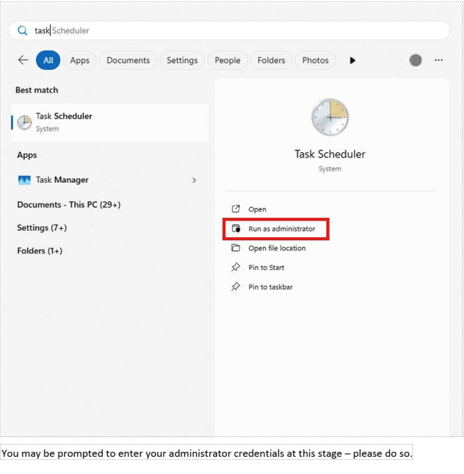
Click on the Windows Start button and start typing task to locate the Task Scheduler program icon. Click on the Run as administrator link
3. Locate the SAMS to Xuno Sync task and run the sync
When the Task scheduler program has opened, click on the Task Scheduler Library node in the left hand section of the form. This will cause the right-hand section to list all the scheduled tasks for the computer.
Scroll down the list on the right-hand side until you locate the SAMS to Xuno Sync entry and select it by clicking on it (once).
The far-right area under the Selected Item heading shows several actions that can be performed with the selected task – click on the Run button to run the scheduled task.
The task will take a couple of minutes to run (depending on the speed of the computer), but there is no visual feedback that the task has completed. You can refresh the view by pressing F5 and then scrolling back down to the SAMS to Xuno Sync task.

4. Wait 5 minutes and check in Xuno.
Any new students, teachers or data updates should now reflect in Xuno.
Troubleshooting
No SAMS to Xuno task in Task Scheduler
There are 2 potential reasons for the sync task not appearing in the Task Scheduler list:
1. Task Scheduler was not opened as an administrator. Make sure that the Task Scheduler program is run as an administrator
2. The SAMS to Xuno sync is not installed on the computer You can confirm if the sync program is installed on the computer or not:
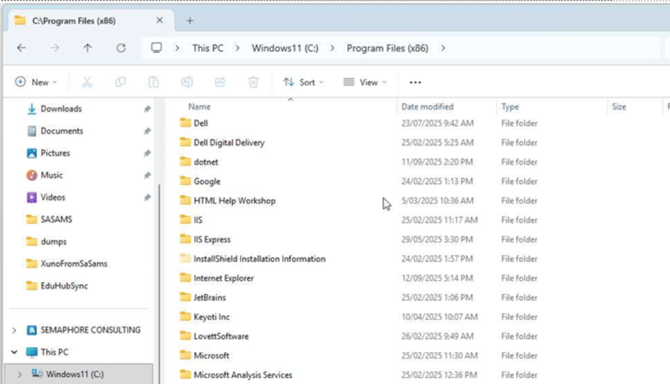
Open Windows File Explorer (on the keyboard, press the Window key + E at the same time). Navigate to C:\Program Files (x86). You should see a GradeXpert folder – if not it is not installed on the computer Open the GradeXpert folder – you should see a XunoFromSAMS folder – if not, it is not installed on the computer.
SAMS Changes not reflecting in Xuno
If you have waited more than a few minutes and the expected SAMS changes do not reflect in Xuno, you could check the log file for the sync to see if it completed successfully or if there were any errors.
Open File Explorer (on the keyboard, press the Window key + E at the same time).
In the address bar at the top, type c:\programdata\xunofromsams and press the Enter key. This will take you to the log folder. You should see several files in the folder – a few .XML files and the others are .log files – 1 file per day the sync program is run.
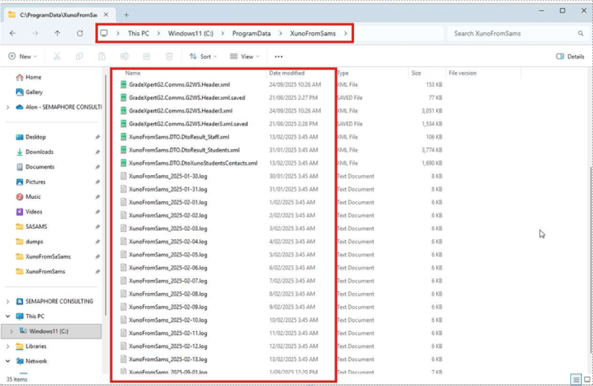
Locate the file for today and double-click on it to open the file in Notepad.
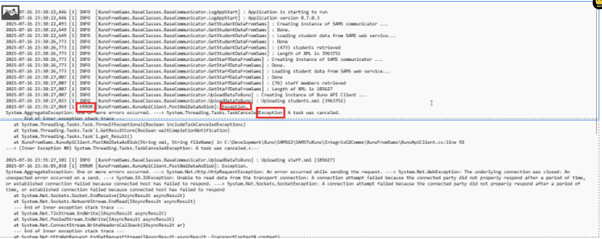
If there were any errors processing the data or uploading the data to Xuno, you will see entries that have the word ‘Exception’ as part of the entry and the text will not appear nice and linear. If this is the case, please contact Xuno support and provide them with the log file so that they can investigate the issue further.