![XUno logo White with border.png]](https://docs.xuno.com.au/hs-fs/hubfs/XUno%20logo%20White%20with%20border.png?height=35&name=XUno%20logo%20White%20with%20border.png)
Creating and Using Public eForms
eForms in Xuno provide a simple and flexible way to collect information from parents, students, or staff—similar to Google Forms, but fully integrated within your school system.
What is a Public eForm?
An eForm is a digital form that allows schools to gather structured information such as permissions, registrations, consent forms, surveys, and event responses. All submissions are automatically recorded within Xuno, making it easy to track and manage responses in one place.
How is it similar to Google Forms?
eForms work in a very similar way to Google Forms:
- You can create custom questions and fields
- Users can submit responses online via a link
- Responses are automatically stored and organised
- You can view, export, and manage submissions easily
Key Features of eForms
- Multiple question types (text, multiple choice, checkboxes, dates, etc.)
- Provide link that can be added in Newsletter or messages and even a separate link for the school's website
- Automatic saving of responses in Xuno
- Secure access for parents, students, and staff
- Option to make fields required or optional
How to Create an eForm
- Go to the School > Events, Fees & eForms > Public eForm section in Xuno
- Click 'Add eForm'
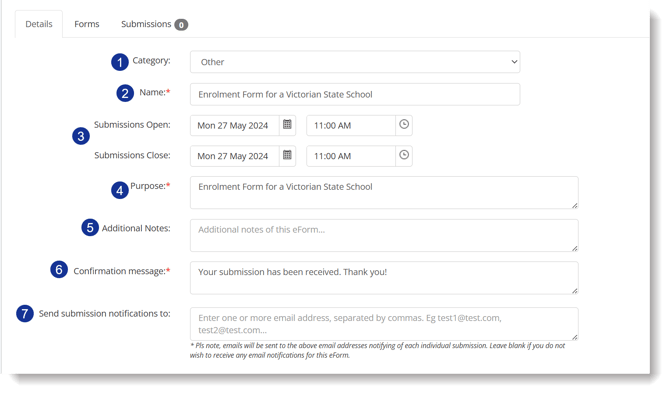
- For the Category, you may modify this in Options > Lists & Options > eForm > Form Categories.
- Specify the name of the eForm
- Indicate the Open and Close Submission Dates
- Include the purpose of the eForm
- Additional Notes is optional so you may leave this blank
- By default, confirmation message is already provided but you may update this
- The Send submission notifications to field allows you to enter the email address whom you wish to receive the notification when someone submitted the form.
Once done, hit save and notice that the below information will be displayed as well:
Adding Questions in the eForm
Forms works similarly with Event Forms in terms of adding questions.
Making eForm Available
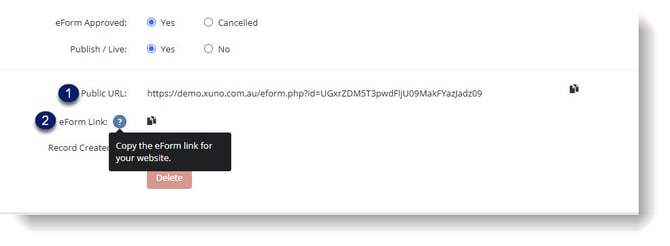
- Copy the public URL and share it in your school newsletter.
- If your school has a website, you can also provide this link to your IT team or the person who manages the website so they can add it to the appropriate page for easy access.
Viewing Responses
Once the form is published and responses are submitted:
- Go to the eForm dashboard
- Select the relevant form
- View all responses in a list or export them if needed