![XUno logo White with border.png]](https://docs.xuno.com.au/hs-fs/hubfs/XUno%20logo%20White%20with%20border.png?height=35&name=XUno%20logo%20White%20with%20border.png)
When creating a session within a Scheduled Program, you can now set a recurrence pattern, enabling the system to automatically generate multiple sessions based on your selected schedule.
Available recurrence options include:
- Daily
- Weekly (with selectable days)
- Custom date range (with start and end date)
How This Helps
Previously, recurring program sessions needed to be created one at a time. With this update, schools can:
- Save time on administrative tasks
- Reduce manual data entry
- Minimise scheduling errors
- Ensure consistency across ongoing programs
- Easily manage long-term support or intervention sessions
Getting Started
Navigate to School > Timetable > Scheduled Programs.
After creating and saving a new Scheduled Program, an additional tab will become available.
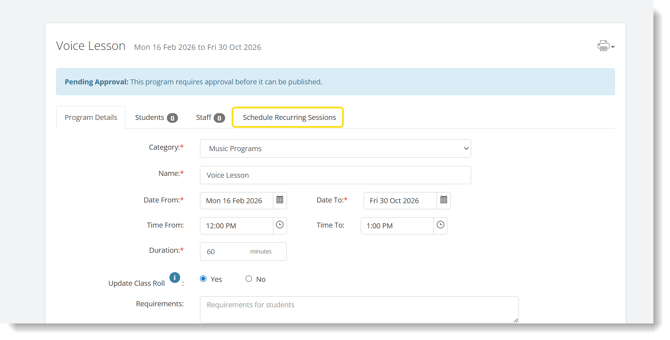
Please note: Students must be added to the program first before you can create recurring sessions.
Once students have been assigned, you’ll then be able to select Add Recurring Sessions to generate the recurring events.
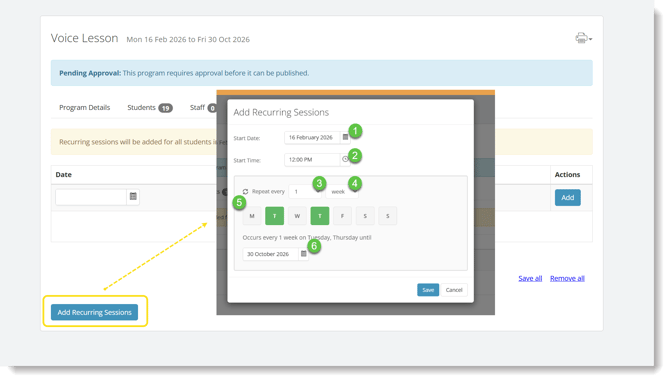
- Start Date - displays the default start date that was selected when the Scheduled Program was originally created. This can be adjusted if the recurring sessions need to begin from a different date.
- Start Time - displays the default session start time set in the program. This can be modified if the recurring sessions need to occur at a different time.
- Repeat Every - allows you to define how often the session repeats (e.g. every 1 week, every 2 weeks, etc.). You can increase the number to adjust the recurrence frequency.
- Frequency Type - Determines the recurrence interval (e.g. week).
In the example shown, the session repeats every 1 week. - Select Days of the Week - Choose which day(s) the session should occur on (e.g. Tuesday and Thursday). Multiple days can be selected, and the system will generate sessions for each selected day within the recurrence period.
- End Date (Occurs Until) - Specifies the date the recurring sessions will stop.
The system will automatically generate sessions from the start date through to this end date, based on the recurrence pattern selected.
Note: If you need to adjust the overall start date to a date earlier than the current program start, or extend the end date beyond the specified end date, this must be updated within the Program Details section.
Selecting Save will automatically generate all sessions for the program and apply them to all students assigned to the Scheduled Program.
Modifying the Sessions
Once sessions have been saved, you can still make changes if required. You may:
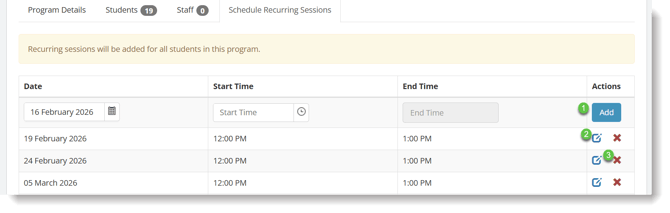
-
Add additional session dates or days
-
Modify the session date or time
-
Remove specific session days
Note: Once the Scheduled Program has been published, you can still modify upcoming session dates and add additional sessions within the specified date range, provided those sessions have not already occurred.
Saving All the Sessions
Selecting Save All will apply and update all modifications to the sessions for the assigned students.
Removing All the Sessions
Choosing Remove All will delete all sessions associated with the students in that Scheduled Program.