![XUno logo White with border.png]](https://docs.xuno.com.au/hs-fs/hubfs/XUno%20logo%20White%20with%20border.png?height=35&name=XUno%20logo%20White%20with%20border.png)
Once Forms has been enabled in your school's Student Maps, users will see Forms on the landing page and tabs.
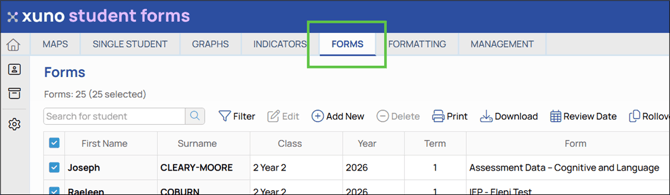
Assign an existing form to a student
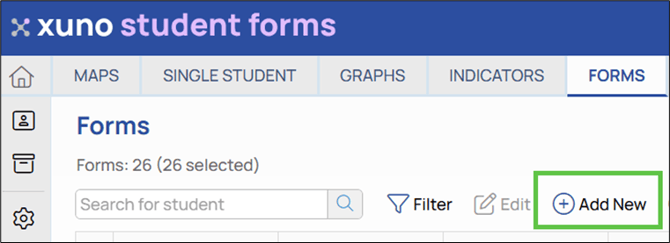
Click into Student Forms and click Add New.
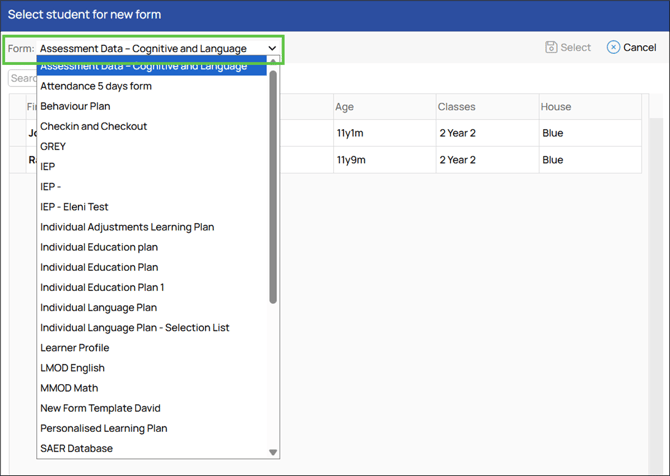
Select the form you want to assign then select the student from the list. Click Select.
Create a new form
Click into Student Forms and click on the cog/settings button.
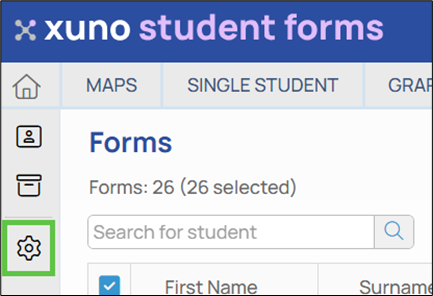
This takes you to the Edit Forms Templates screen.

On this page, you can adjust some global settings for the Forms such as Style Settings, the Header and Footer.
To create a new form template, click Insert Template. This takes you to the Edit New Form Template screen.

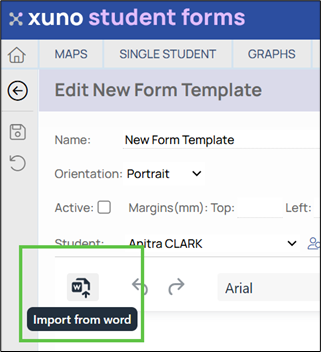
If you have an existing form in Word, you can import it into Student Forms. The Word import will strip the document of formatting such as colour/shading, fonts, bolding/italics etc. This can be restored using the options in the toolbar.
You can build a new simple form template from scratch by adding text, tables and cells or lists from the toolbar. To make more elaborate forms, you can use the Form Fields. These can be accessed by clicking on the pin in the top right corner of the form editing screen.
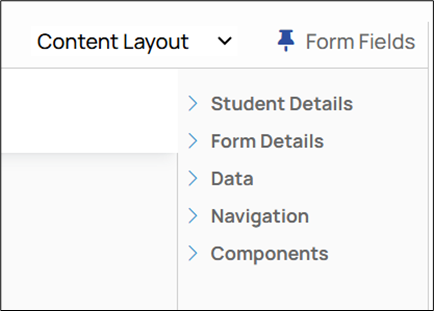
| The Student Details fields contain placeholders for student data that is already in the system. When a form is assigned to a student, these fields will populate with the student’s data. | 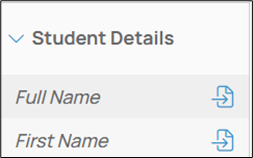 |
| Form Details will add fields that categorise the form i.e. Description, Term, Semester and fields for form management i.e. Start Date, Review Date. | 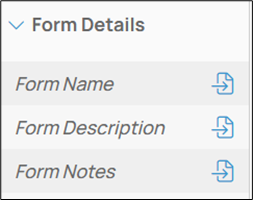 |
| Data fields include information that has been assigned to the student such as Indicators or Assessment results. | 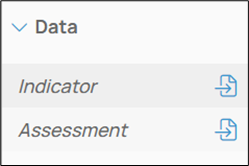 |
| Navigation fields make the form easier to read or complete by creating a Side Navigation menu, through which users can jump to a section, or Page Break. Forms does not break across pages like Word so it must be told where to make a new page section. |  |
| Components include text boxes, date pickers, checkboxes, radio buttons etc. There are also more complex components that can be formatted, such as Multi Select, Rubric or Data Grid. | 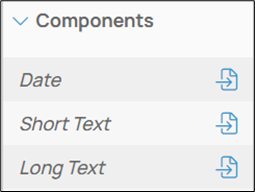 |
Formatting Cells and Tables
To adjust the spacing or text padding in a cell or table, select the cell or table section and click on the Table icon in the toolbar. Select Table Properties from the dropdown menu.
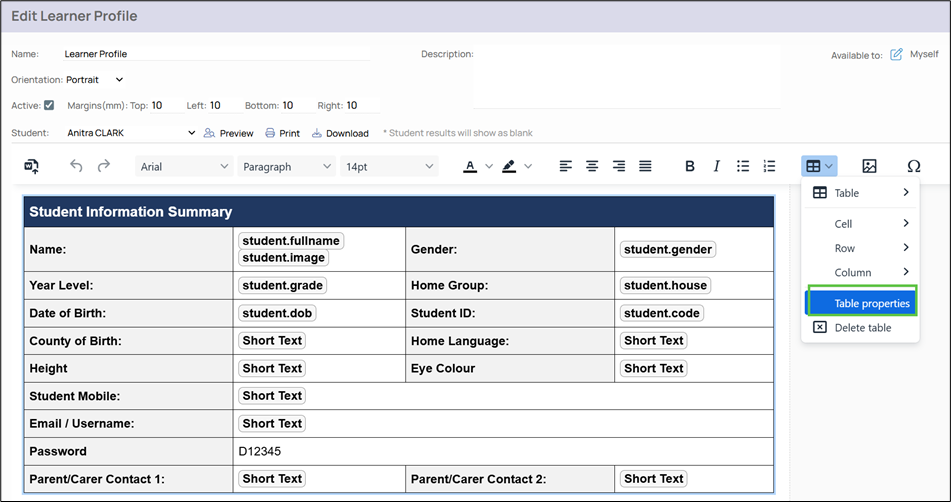
In the Table Properties window, you can adjust width and height of cells, columns and rows and the “padding” around text in the cell i.e. how close the text is to the borders of the cell. It is generally recommended to add a padding of 4 px (pixels) so the text is not too close to the borders.
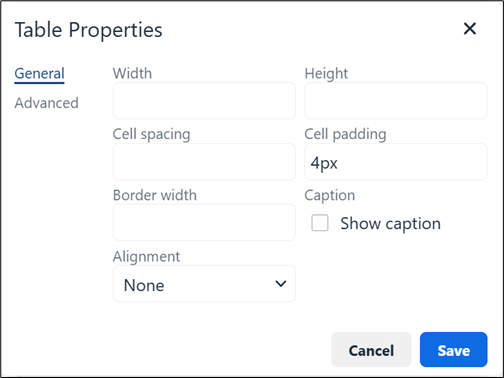
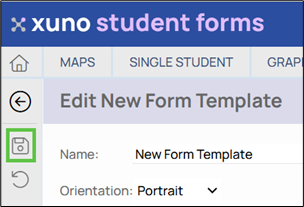
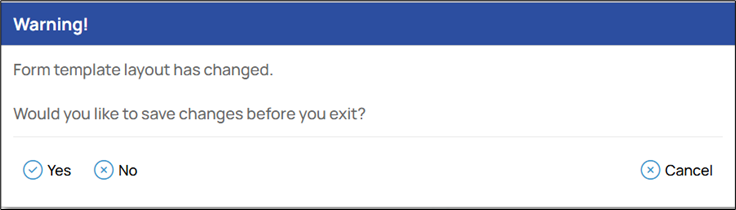
Any changes you make to the Template must be saved by clicking the Save button. You will also be prompted if you try to exit the screen without saving.
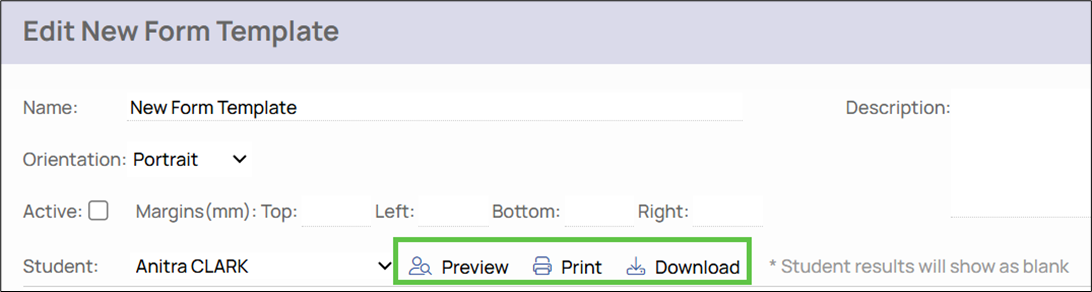
To check what the form will look like, you can use the Preview, Print or Download options. When the form is ready for use, check the Active box to ensure access for all users.
Deleting Forms and Templates
In the Forms or Edit Forms Template screen, select the form or template you want to delete and click the Delete button in the toolbar.

Once a form or form template is deleted, it cannot be recovered. Ensure you no longer need the form or have downloaded a copy before deleting. In the case of templates, it is best to untick the Active box rather than delete it.