![XUno logo White with border.png]](https://docs.xuno.com.au/hs-fs/hubfs/XUno%20logo%20White%20with%20border.png?height=35&name=XUno%20logo%20White%20with%20border.png)
• If a map column has been set up to allow attachments to be added, for example student work samples, the column heading will show Attachment.
• The number in the cell indicates the number of attachments that have been added to that assessment for that student. The attachments are also linked to that assessment’s date options, e.g. 2023 Term 2. This means you can add different attachments for the same assessment for different periods.
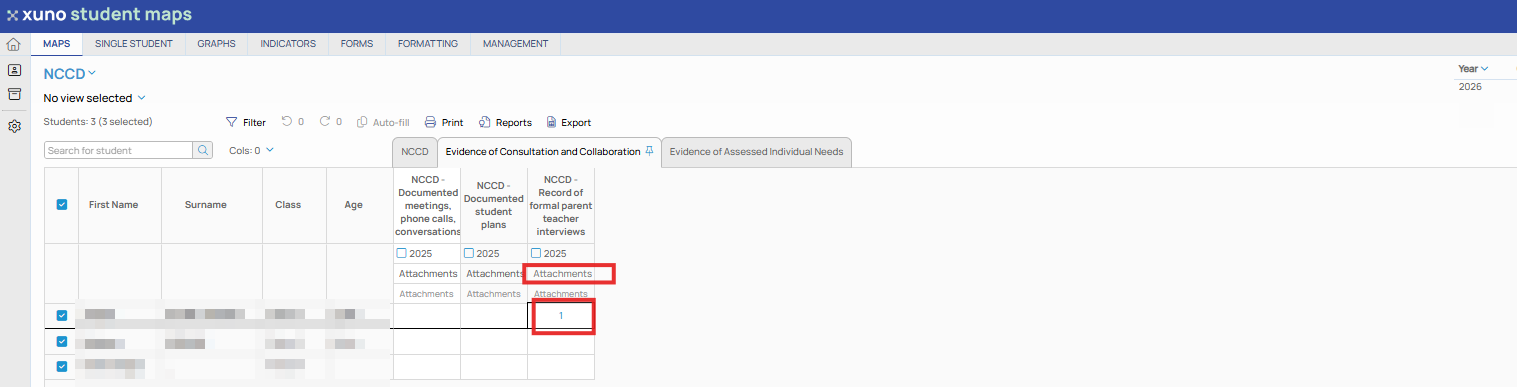
• Any type of document can be attached, e.g. PDF, jpeg, Word, Excel, video clips.
• When clicking in the attachment cell, you’ll be shown the attachment selection screen, where you can upload new attachments to the Xuno database for this student’s assessment, delete existing attachments and download (i.e. open) saved attachments.
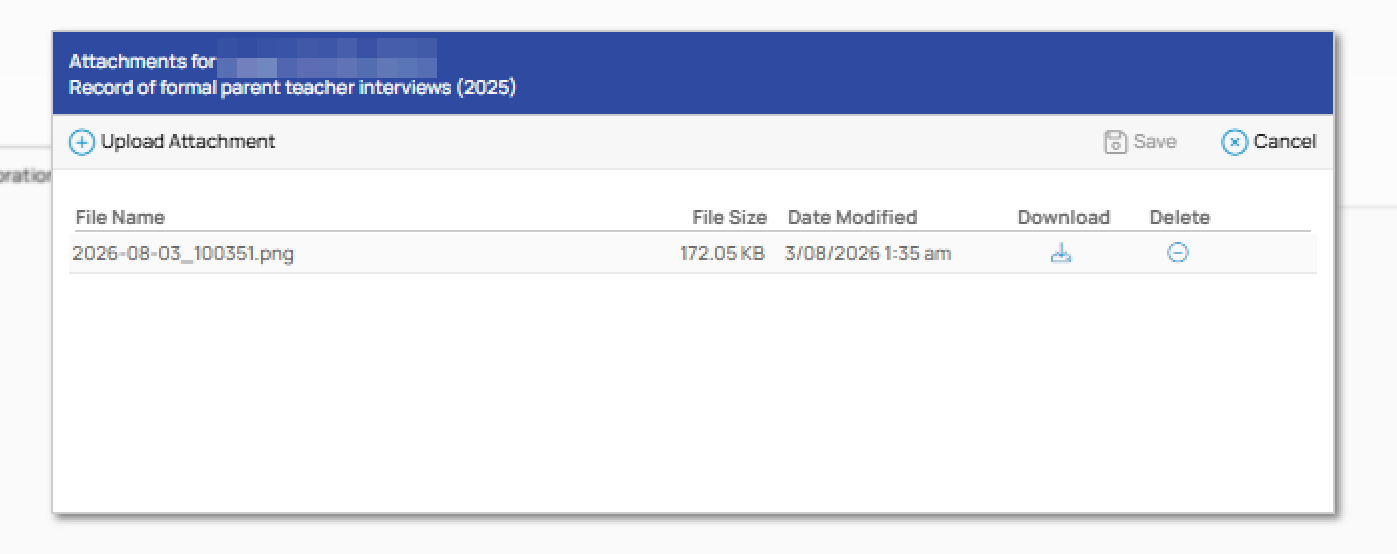
• You can store an unlimited number of attachments per assessment.