![XUno logo White with border.png]](https://docs.xuno.com.au/hs-fs/hubfs/XUno%20logo%20White%20with%20border.png?height=35&name=XUno%20logo%20White%20with%20border.png)
Single sign on (SSO for short) is an authentication method that enables users to securely authenticate with multiple applications and websites by using just one set of credentials (username/password). This makes it easier for users as you don’t need to remember multiple different usernames and passwords to systems that are SSO-enabled.
• When logging in to Student Maps from Xuno, you do not need to enter another username and password, as you have already logged in to Xuno securely, and Student Maps can then be accessed from within Xuno.
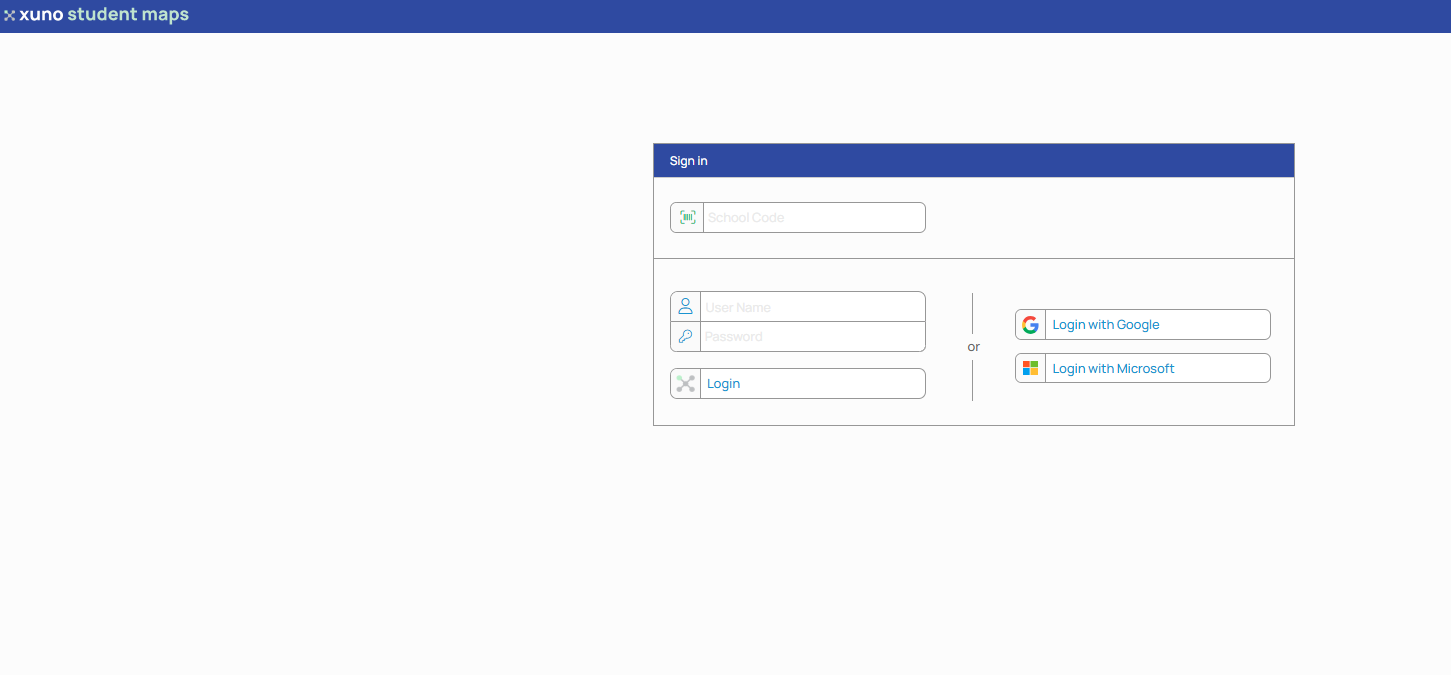
• However, if you access Student Maps directly, you will need to enter a username and password. Student Maps allows you to log in as a user set up in the GradeXpert desktop application, with the username and password set up there.
• You can also log into Student Maps directly if you already have a Google or Microsoft account that you use for email or logging in to any other system provided by these companies. Simply type in your school code as normal into the login screen, then click either Login with Google or Login with Microsoft.
• You will then be taken to the Google or Microsoft login page where you will be asked to enter your Google or Microsoft login details, with 2 factor authentication if set up.
IMPORTANT NOTE:
If using SSO to log in to Student Maps, you will still need to be set up as a user in GradeXpert desktop application, ensuring the email address you use to log in with SSO is set up as the user email in the GradeXpert desktop application (Settings > Users > Email column). This allows the username and password entered when logging in with SSO to match to the correct user in Student Maps, ensuring the correct access levels are applied to that user in Student Maps. • If you do not have a Google or Microsoft account, then you cannot log in to Student Maps using SSO, you will need to log in using the username and password set up in the GradeXpert desktop application.